






Samsung Galaxy Tab A updates are essential for keeping your device running smoothly. In this article, we will guide you through the process of checking for and installing updates.
Why Updating Your Device is Important
Keeping your device up to date is crucial for several reasons. Firstly, updates ensure that your Samsung Galaxy Tab A operates smoothly and efficiently. Manufacturers often release updates to fix bugs and improve performance, making your device more reliable over time.
Moreover, updates can enhance the security of your device. Cyber threats are constantly evolving, and software updates often include patches that address vulnerabilities, protecting your personal information and data. By regularly updating your device, you can minimize the risk of security breaches.
Another important aspect is the introduction of new features. Updates can bring exciting new functionalities that enhance your user experience, allowing you to take full advantage of your tablet’s capabilities. From improved multitasking to better integration with other devices, the latest updates can significantly enrich your usage.
Finally, staying updated ensures compatibility with the latest apps. Many applications require the most recent software versions to function correctly, and having an outdated operating system can limit your access to these tools.
In summary, updating your Samsung Galaxy Tab A is essential for performance, security, features, and app compatibility.
How to Check for Updates on Samsung Galaxy Tab A
Checking for updates on your Samsung Galaxy Tab A is a straightforward process that ensures your device runs smoothly and securely. Follow these easy steps to verify if there are any available updates.
- Start by unlocking your Samsung Galaxy Tab A and navigating to the Settings app. This can usually be found on your home screen or in the app drawer.
- Scroll down and select Software update. This section will provide you with information about your device’s current software version.
- Tap on Download and install. Your device will check for any available updates. If an update is found, you will be prompted to download it.
- Once the download is complete, follow the on-screen instructions to install the update. It’s essential to have a stable internet connection, preferably Wi-Fi, to avoid data charges.
- After installation, your Samsung Galaxy Tab A may restart. This is normal and helps complete the update process.
By regularly checking for updates, you can enjoy the latest features and improvements for your Samsung Galaxy Tab A.
Steps to Install Updates Safely
Installing updates on your Samsung Galaxy Tab A is essential for maximizing performance and security. Follow these steps to ensure a safe installation process:
- Backup Your Data: Before proceeding with any updates, it’s crucial to back up your important data. Use Samsung Cloud or another backup service to save your files, photos, and settings.
- Ensure Sufficient Battery Life: Make sure your device is charged to at least 50% before starting the update. This prevents interruptions during the installation process.
- Connect to Wi-Fi: Updates can be large files, so it’s best to connect your Samsung Galaxy Tab A to a reliable Wi-Fi network to avoid data charges.
- Visit Settings: Go to the Settings app on your device, scroll down to “Software update,” and tap on it.
- Download and Install: If an update is available, follow the on-screen prompts to download and install it. Your device may restart during this process.
By following these steps, you can safely install the latest Samsung Galaxy Tab A updates and enjoy the improvements they bring.
Common Issues During Update Installation
When updating your Samsung Galaxy Tab A, users may encounter some common issues that can hinder the installation process. Understanding these challenges can help you troubleshoot effectively.
- Insufficient Storage Space: One of the most frequent problems is running out of storage. Updates require a certain amount of free space to install. To resolve this, check your storage settings and consider deleting unnecessary files or apps.
- Network Connectivity: A stable internet connection is essential for downloading updates. If you experience interruptions, try switching to a different Wi-Fi network or resetting your router.
- Battery Life: Ensure your device is sufficiently charged before starting the update. If the battery level is low, it may prevent the installation from proceeding. Aim for at least 50% battery life or keep your device plugged in.
- Software Compatibility: Occasionally, specific updates may not be compatible with older devices. If you encounter issues, check for any official announcements from Samsung regarding your model.
By being aware of these common issues during the update installation, you can ensure a smoother process while updating your Samsung Galaxy Tab A.
Tips for Keeping Your Tablet Updated
Keeping your Samsung Galaxy Tab A updated is crucial for ensuring optimal performance and security. Here are some tips to help you stay on top of updates:
- Schedule Regular Checks: Make it a habit to check for updates regularly. You can set reminders every month to ensure that your device is always running the latest software.
- Enable Automatic Updates: If you prefer a hands-off approach, enable automatic updates in your device settings. This way, your Samsung Galaxy Tab A will automatically download and install updates when they become available.
- Free Up Space: Before installing updates, ensure you have enough storage space on your tablet. Uninstall unnecessary apps or move files to an external storage device to create room for the new updates.
- Stay Connected: Always connect to a stable Wi-Fi network before downloading updates. Using mobile data can lead to interruptions and potential issues during the installation process.
- Read Release Notes: Familiarize yourself with the release notes for updates. They often include important information about new features and improvements specific to your Samsung Galaxy Tab A.
Conclusion: Ensure Optimal Performance
In conclusion, keeping your Samsung Galaxy Tab A updated is essential for ensuring optimal performance and security. Regular updates not only introduce new features but also enhance the overall functionality of your device, making your user experience smoother and more enjoyable.
To maintain your tablet’s efficiency, follow the steps outlined in previous sections to check for updates regularly. It’s advisable to set a reminder to check at least once a month. Remember, updates can fix bugs and improve system stability, which is crucial for daily tasks.
When installing updates, ensure you have a stable internet connection and sufficient battery life. If issues arise during installation, refer to the common problems section for troubleshooting tips. Additionally, regularly clearing cache and unnecessary files can help in avoiding potential update errors.
Lastly, keeping your Samsung Galaxy Tab A updated demonstrates your commitment to using technology responsibly. With these simple practices, you can enjoy all the benefits that come with the latest updates, ensuring that your tablet remains a reliable tool for work and play.
To ensure a smooth installation process, it’s important to follow the guidelines for Samsung Galaxy Tab A updates carefully. Users can check for the latest Samsung Galaxy Tab A updates by navigating to the settings menu.
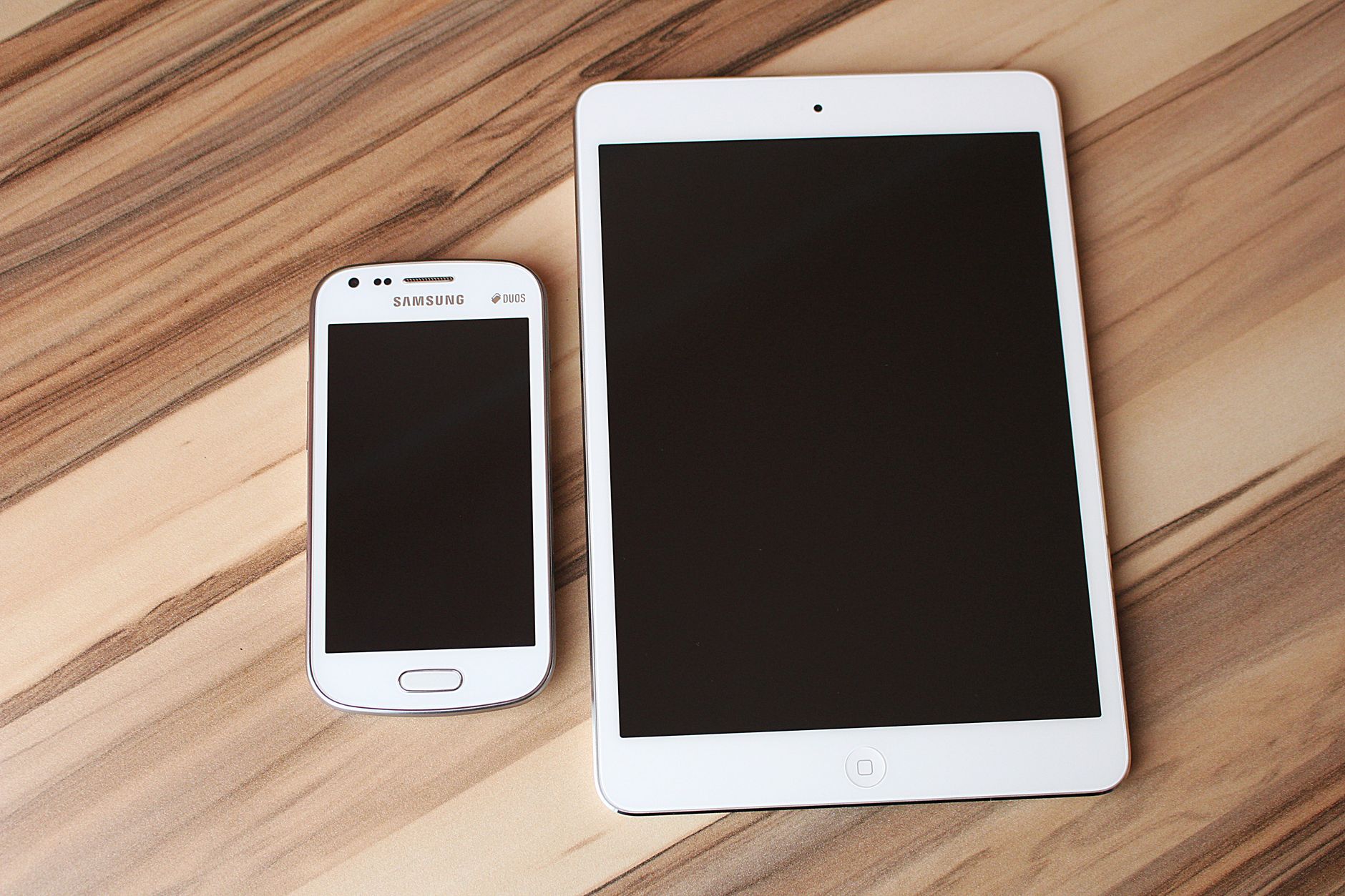
Photo by Pixabay on Pexels